Networking Essentials
Before you can attack or defend a network you need to understand how machines actually talk to each other. This room covers the OSI model, how a TCP connection is established, and the well-known ports behind everyday services.
What Is a Network?
Start at the very beginning
Before hacking, before defending, before anything else, you need to understand what a network actually is. The good news: the core idea is genuinely simple.
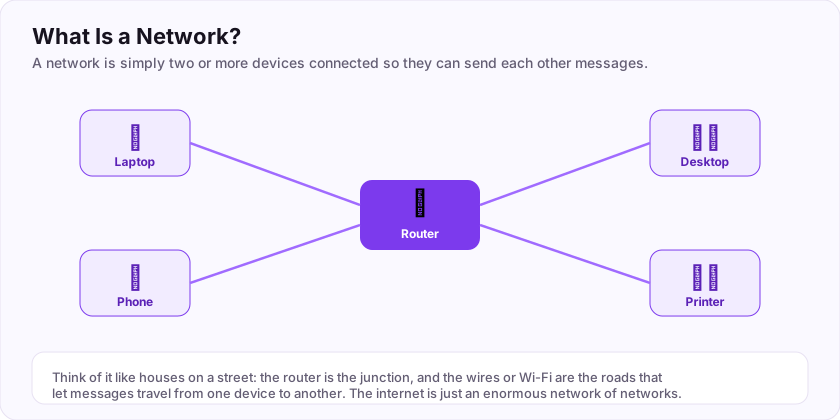
A network is just two or more devices connected together so they can send each other messages. Your phone, your laptop, a printer, a games console — connect them so they can talk, and you have made a network.
An everyday picture
Imagine a street of houses. Each house can post letters to the others because roads connect them. On a network:
- the houses are your devices (laptop, phone, server),
- the roads are the cables or Wi-Fi signals,
- and the junction in the middle is usually a router, which passes messages between everyone.
So what is "the internet"?
The internet is not one giant computer. It is an enormous network of networks — millions of small networks (homes, schools, companies) all joined together so a message can travel across the whole world. When you visit a website, your little home network hands your message off, and it hops from network to network until it reaches the computer that holds the website.
That is the whole foundation. Everything else in this room is simply detail about *how* those messages find the right device and arrive safely.
Your first flag: ASEC{networks_connect_devices}
What do we call two or more devices connected so they can exchange messages? (one word)
+10 ptsNeed a hint?
It is the name of this whole topic.What is the flag at the end of this task?
+10 ptsNeed a hint?
It is in bold at the very end.IP Addresses: Every Device Has One
How does a message find the right device?
If a network is houses sending letters, then every house needs an address. On a network, that address is called an IP address (IP stands for Internet Protocol).
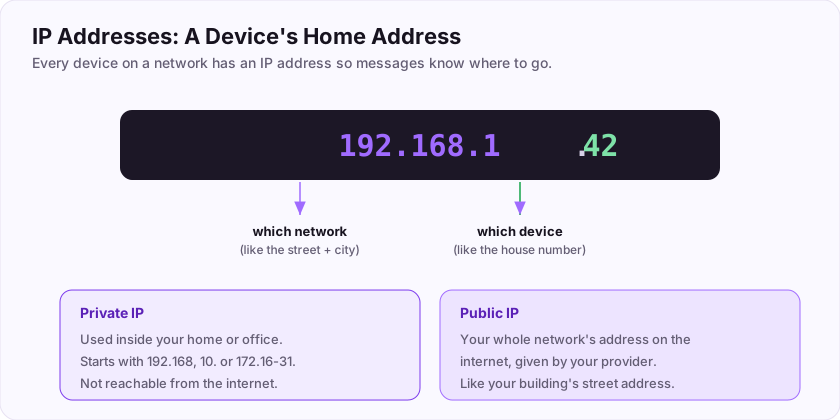
An IP address looks like this: 192.168.1.42 — four numbers separated by dots. Read it like a postal address, from general to specific:
- the first part (192.168.1) says *which network* the device is on — like the street and city,
- the last part (42) says *which specific device* — like the house number.
Public vs private addresses
There are two flavours, and the difference matters a lot:
- A private IP is used *inside* your home or office. Addresses that start with 192.168, 10., or 172.16–31 are private. They are reused in millions of homes and cannot be reached directly from the internet.
- A public IP is your whole network's single address *on* the internet, given to you by your internet provider. It is like your building's street address that the outside world uses.
Your home router sits between the two: inside, your devices have private IPs; to the outside world, they all share one public IP.
Why a hacker cares
The very first step in almost any security task is working out which IP addresses exist and which are reachable. You cannot talk to a device — let alone attack or defend it — until you know its address.
Flag: ASEC{every_device_has_an_ip}
Is an address that begins with 192.168 a public or a private IP?
+10 ptsNeed a hint?
It is used inside your home network.What is the flag for this task?
+10 ptsNeed a hint?
It is in bold at the end.The OSI Model
One message, seven jobs
When your device sends a message, a surprising amount has to happen: the data must be formatted, possibly secured, broken into pieces, addressed, and finally turned into a signal on a wire or a radio wave. To make sense of all that work, people split it into seven layers, known as the OSI model.
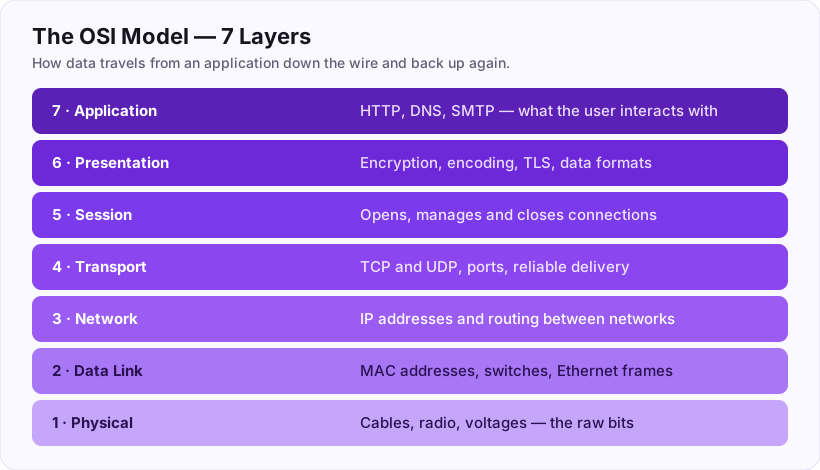
Read it from the bottom up:
- Layer 1 (Physical) — the actual cable, fibre or Wi-Fi signal. Raw 1s and 0s.
- Layer 2 (Data Link) — talks to devices on the *same local network* using MAC addresses.
- Layer 3 (Network) — where IP addresses live and messages are routed between networks. This is the layer you will meet most.
- Layer 4 (Transport) — home of TCP and UDP, which manage the actual conversation (coming up next).
- Layers 5–7 (Session, Presentation, Application) — the top layers, closest to you. Layer 7 is where your browser speaks HTTP.
Why bother with layers?
Because it lets you reason about a problem one piece at a time. If a website will not load, is the cable unplugged (layer 1)? Is the IP address wrong (layer 3)? Is the website itself broken (layer 7)? The model turns a vague "the internet is broken" into a precise, testable question.
The model has 7 layers, and IP addresses live at the Network layer. Those two facts alone will carry you a long way.
How many layers does the OSI model have?
+10 ptsNeed a hint?
Count the rows in the diagram.At which single-word layer do IP addresses and routing operate?
+10 ptsNeed a hint?
Layer 3.Packets: How Data Travels
Data does not travel in one big lump
When you send a photo or load a page, the data is not fired off as one giant blob. It is chopped into thousands of small pieces called packets, sent separately, and reassembled at the other end. If one packet is lost along the way, only that little piece has to be resent — not the whole thing.
How a packet is built
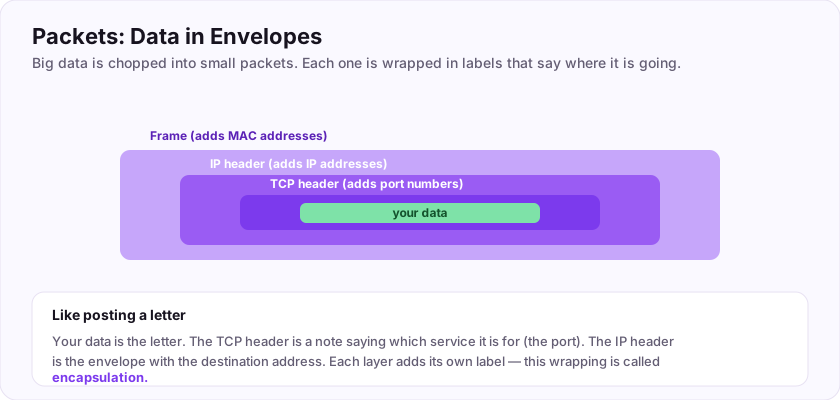
As your data travels *down* the OSI layers, each layer wraps it in its own label — a bit like putting a letter inside nested envelopes:
- your data is the letter,
- the Transport layer adds a note saying which service it is for (the port number),
- the Network layer adds the envelope with the IP addresses (where it is from and where it is going),
- the Data Link layer adds the local delivery labels (MAC addresses).
This wrapping process is called encapsulation. At the destination, each layer peels off its own label until the original data is delivered.
Why a hacker cares
Tools like Wireshark let you capture packets and read every one of these labels. Being able to look inside a packet and see the addresses, ports and data is one of the most powerful skills in both attacking and defending networks.
Flag: ASEC{data_travels_in_packets}
What is the name for wrapping data in headers as it goes down the layers? (one word)
+10 ptsNeed a hint?
Like putting a letter in nested envelopes.What is the flag for this task?
+10 ptsNeed a hint?
It is in bold at the end.Ports and Services
One device, many services
An IP address gets your message to the right *device*. But a single computer often runs many services at once — a website, email, file sharing. So how does a message reach the right *program*? With a port.
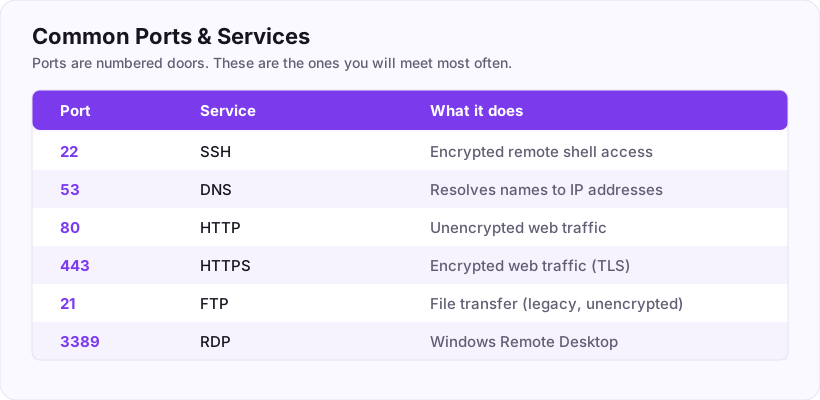
If the IP address is the building, the port is the specific door or apartment number. A device has 65,535 ports, and services listen on agreed-upon ones so everyone knows where to knock:
- 80 — HTTP (unencrypted web)
- 443 — HTTPS (encrypted web). HTTPS uses port 443 — worth memorising.
- 22 — SSH (secure remote login)
- 53 — DNS (name lookups)
Why a hacker cares
One of the first steps against any target is a port scan — checking which ports are open to learn what services are running. An open port is a door you might be able to knock on; a defender's job is to close every door they do not need.
There is also a flag hidden here, written in Base64 — a reversible way of representing text. Decode this string (any online Base64 decoder will do) to reveal the flag:
QVNFQ3twb3J0XzQ0M19pc19odHRwc30=
=. Whenever you see one, try decoding it first.Which port does HTTPS use by default?
+10 ptsNeed a hint?
It is HTTP plus TLS.Decode the Base64 string to find the flag.
+20 ptsNeed a hint?
Base64 is reversible with any decoder.The TCP Three-Way Handshake
Starting a reliable conversation
At the Transport layer (layer 4) there are two main ways to send data. UDP just fires packets off and hopes they arrive — fast, but with no guarantees (great for video calls). TCP is the careful one: it sets up a proper connection first and guarantees every piece arrives, in order. The web, email and file transfers all use TCP.
Before TCP sends any real data, the two sides shake hands in three steps — the three-way handshake:
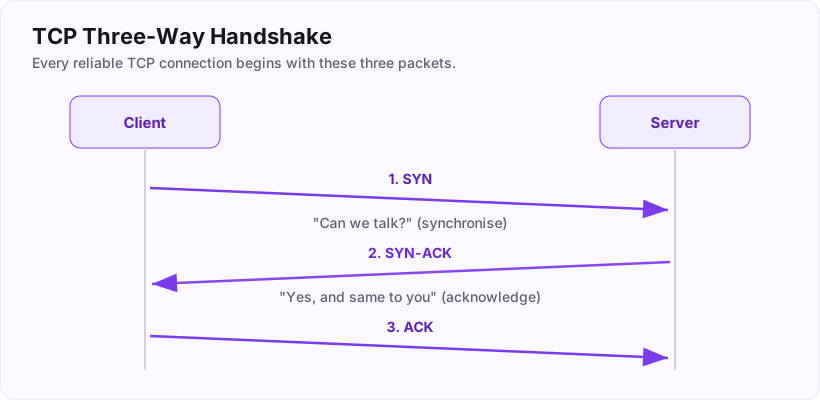
- The client speaks first, sending a SYN packet — think "Hello, can we talk?"
- The server replies with a SYN-ACK — "Yes, I hear you. Can *you* hear me?"
- The client sends a final ACK — "Yes! Let's go." The connection is now open.
The very first packet, the one the client sends to begin everything, is the SYN.
Why a hacker cares
This handshake is exactly what a port scanner tests. When a scanner sends a SYN and gets a SYN-ACK back, it knows the port is open and listening — often before it even finishes the connection. Understanding the handshake is understanding how scanning works.
Which packet does the client send first to begin a TCP connection?
+15 ptsNeed a hint?
Three letters.DNS: The Internet's Phonebook
Names for humans, numbers for machines
You type example.com, not 93.184.x.x — because names are easy to remember and long numbers are not. But the network itself only understands IP addresses. Something has to translate between the two, and that something is DNS, the Domain Name System.
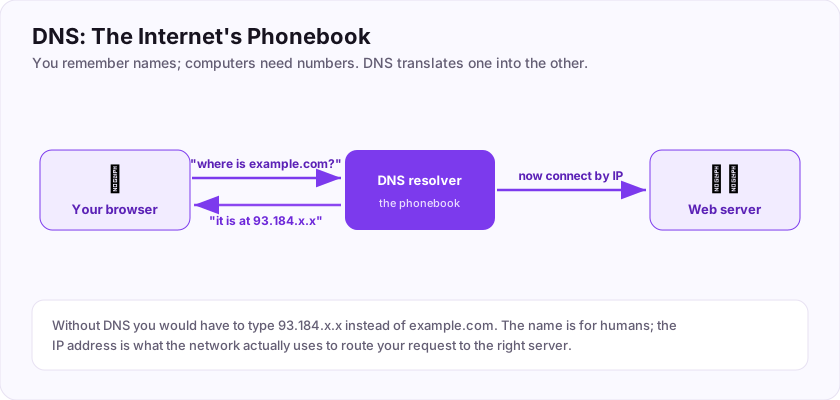
DNS is the internet's phonebook. You give it a name; it gives you back the number (the IP address). Here is what happens the instant you press Enter:
- Your browser asks a DNS resolver: "What is the IP address for example.com?"
- The resolver looks it up and replies: "It is at 93.184.x.x."
- Now your browser can actually connect, using that IP address.
All of this happens in a fraction of a second, every single time you load a page, usually without you noticing.
Why a hacker cares
DNS is a goldmine. Its records can reveal a company's mail servers, subdomains and cloud providers — a map of the target drawn entirely from public information. Attackers also abuse DNS to redirect victims to fake sites, and defenders watch DNS traffic closely for signs of malware phoning home.
Flag: ASEC{dns_is_the_phonebook}
What three-letter system turns a name like example.com into an IP address?
+10 ptsNeed a hint?
Domain Name System.What is the flag for this task?
+10 ptsNeed a hint?
It is in bold at the end.Putting It All Together: Loading a Website
The whole journey, in one second
You now know every piece. Let's watch them work together in the everyday act of loading a website. This single walkthrough ties the entire room into one story.
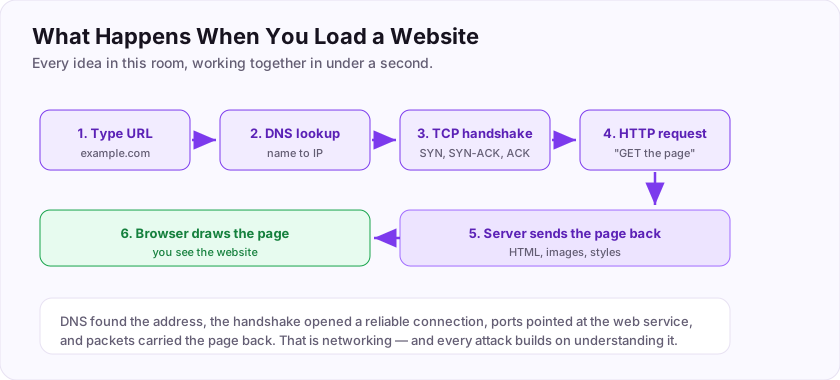
- You type a URL like example.com and press Enter.
- DNS lookup — your browser asks the phonebook for the site's IP address, because the network needs a number, not a name.
- TCP handshake — your browser and the server exchange SYN, SYN-ACK, ACK to open a reliable connection.
- The request travels in packets — your "please send me the page" request is wrapped in headers (encapsulation), addressed with IP addresses, and aimed at port 443 for HTTPS.
- The server responds — it sends the page back, again as packets, which your browser reassembles.
- The browser draws the page — and you see the website.
Every concept from this room appears in that sequence: networks and devices, IP addresses, the OSI layers, packets, ports, the TCP handshake, and DNS. When you can narrate this journey confidently, you understand networking at a level most people never reach — and it is the ground that every attack and every defence is built on.
Your graduation flag for this room: ASEC{i_understand_networking}
In the journey, which system finds the server's IP address from its name? (three letters)
+10 ptsNeed a hint?
The phonebook step.What is your graduation flag for this room?
+15 ptsNeed a hint?
It is in bold at the very end.Job-Ready Notes
Job-Ready Notes
Tools to know: Nmap, Wireshark, tcpdump, netcat.
Cheat sheet
nmap -sV -sC -p- target        # versions + default scripts, all ports
tcpdump -i eth0 port 80        # capture HTTP traffic
Interview practice
- Walk through the TCP three-way handshake.
- What is the difference between TCP and UDP?
- What does a SYN (half-open) scan do and why use it?
Reviews
No written reviews yet. Be the first once you have played the room.